
Embed Kampfire in Cvent
Bring your branded post-event engagement hub right into your Cvent event page and mobile app, so attendees find their photos exactly where they already are.
Use whatever fits your Cvent setup
Link
Drop your Kampfire hub link into any Cvent text, button, or email element.
Button
Add a branded "Get your photos" button that opens the hub.
QR code
Display a QR on-screen and on-site so attendees reach the hub in one scan.
Iframe
Embed the hub directly inside a Cvent event-page section.
Add Kampfire to the Cvent Attendee Hub
Five steps in your Cvent dashboard - the whole setup takes under ten minutes.
Watch the full walkthroughOpen the Attendee Hub module
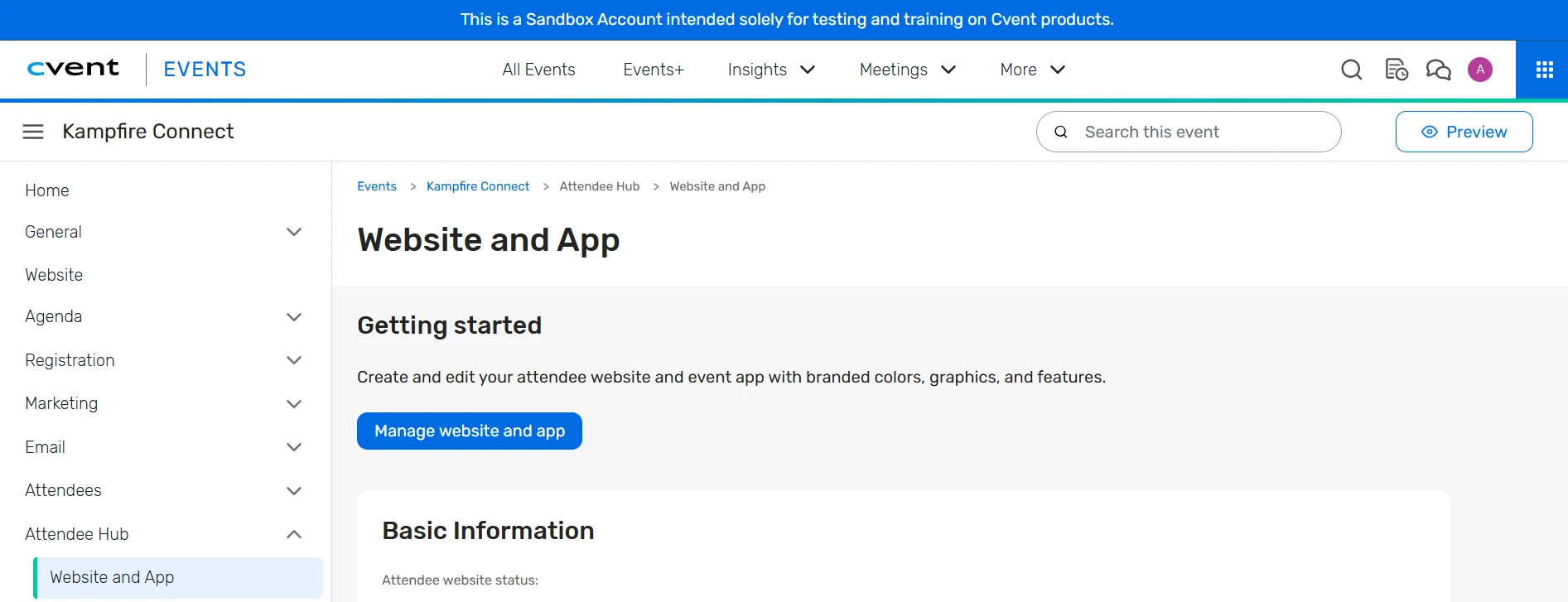
Log in to your Cvent account and open the relevant event. From your event dashboard, navigate to Attendee Hub > Website and App > Manage Website and App. Then choose the page where you would like to place Kampfire - in most cases, this will be the Home Page.
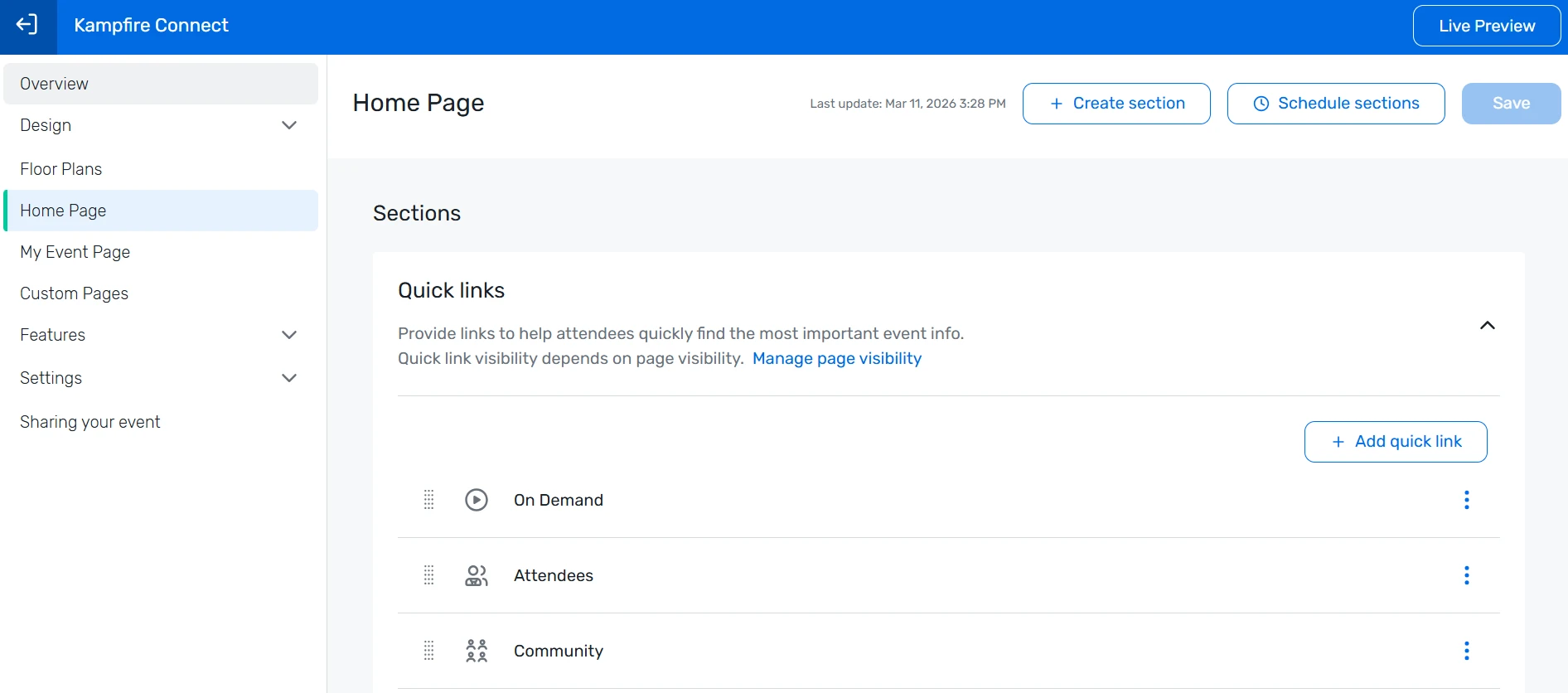
Add a new section
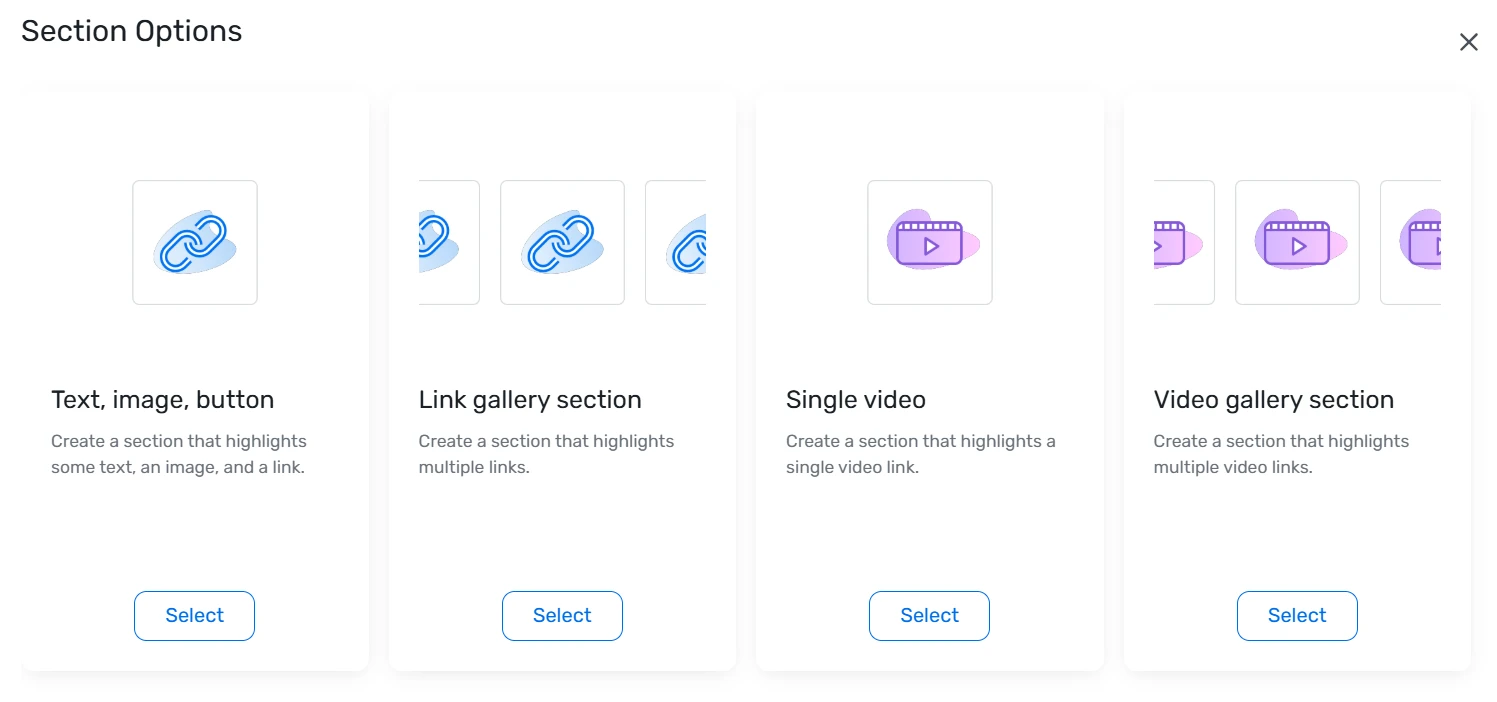
On the Home Page, click + Create Section in the top-right corner. From the Section Options panel that appears, select Text, Image, Button. This section type works well for directing attendees to your Kampfire hub.
Configure the section
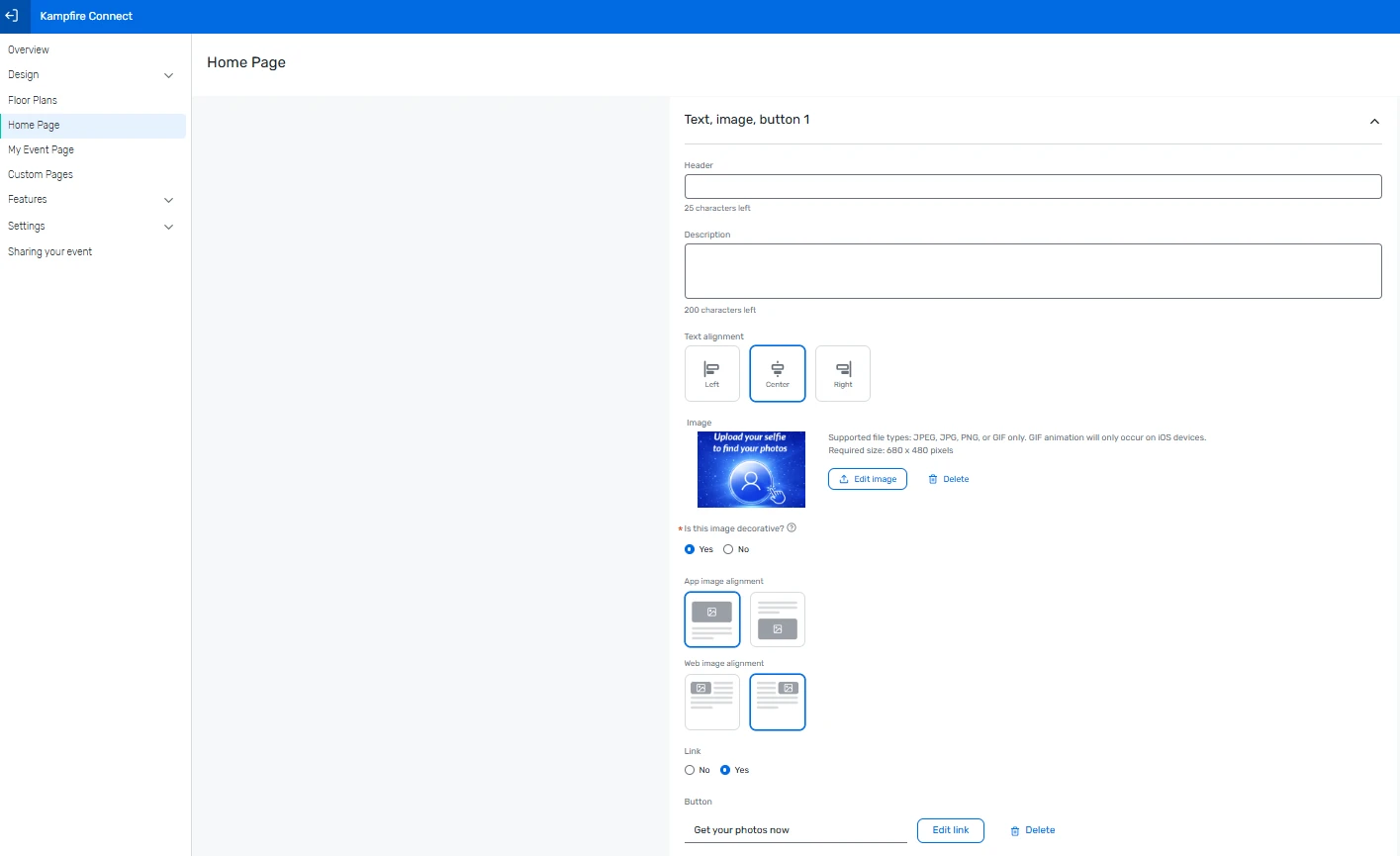
Fill in the section fields - Header, Description, and Image (recommended). Then set up the button: link type External (link to a website), a clear call to action as the button text, and your Kampfire hub link as the URL.
Tip: A branded image makes the section more visible and engaging for attendees. Required image size: 680 x 680 px (JPEG, JPG, PNG, or GIF).
Save your updates
Once the section details are complete, click Save in the top-right corner of the editor.

Test the attendee experience
Open the Attendee Hub as an attendee, or use the Live Preview option, to confirm that the section appears correctly on the Home Page, the title and image display as expected, and the button opens the correct Kampfire page.
Embed Kampfire in your Cvent event website
Four steps in Site Designer - no technical knowledge required.
Open Site Designer
From your Cvent dashboard, go to Website > Event Website, then click Open Site Designer.
Tip: If you don't see the Event Website module in your dashboard, go to General > Event Features and make sure the Website module is enabled.
Add a Code element
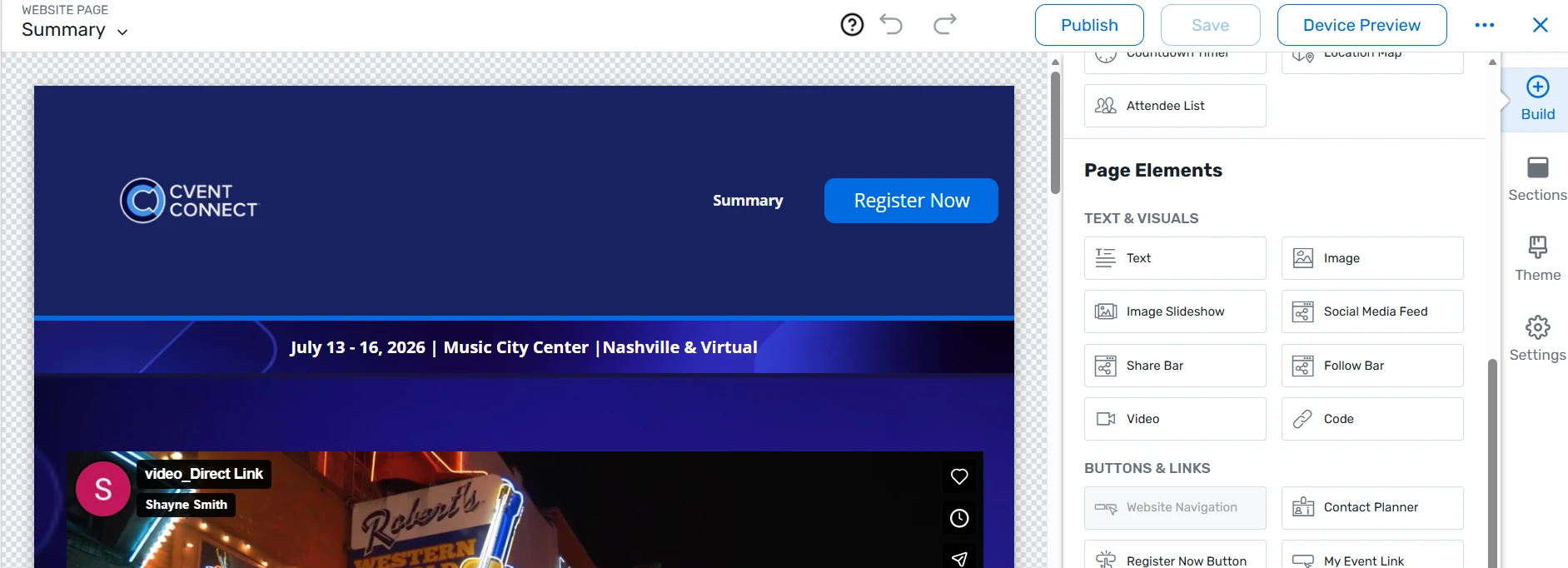
Inside Site Designer, locate the Code element under Page Elements and drag it to the section of the page where you want Kampfire to appear. You can also use the + buttons within the page layout to insert it in the right spot.
Paste in the Kampfire embed code
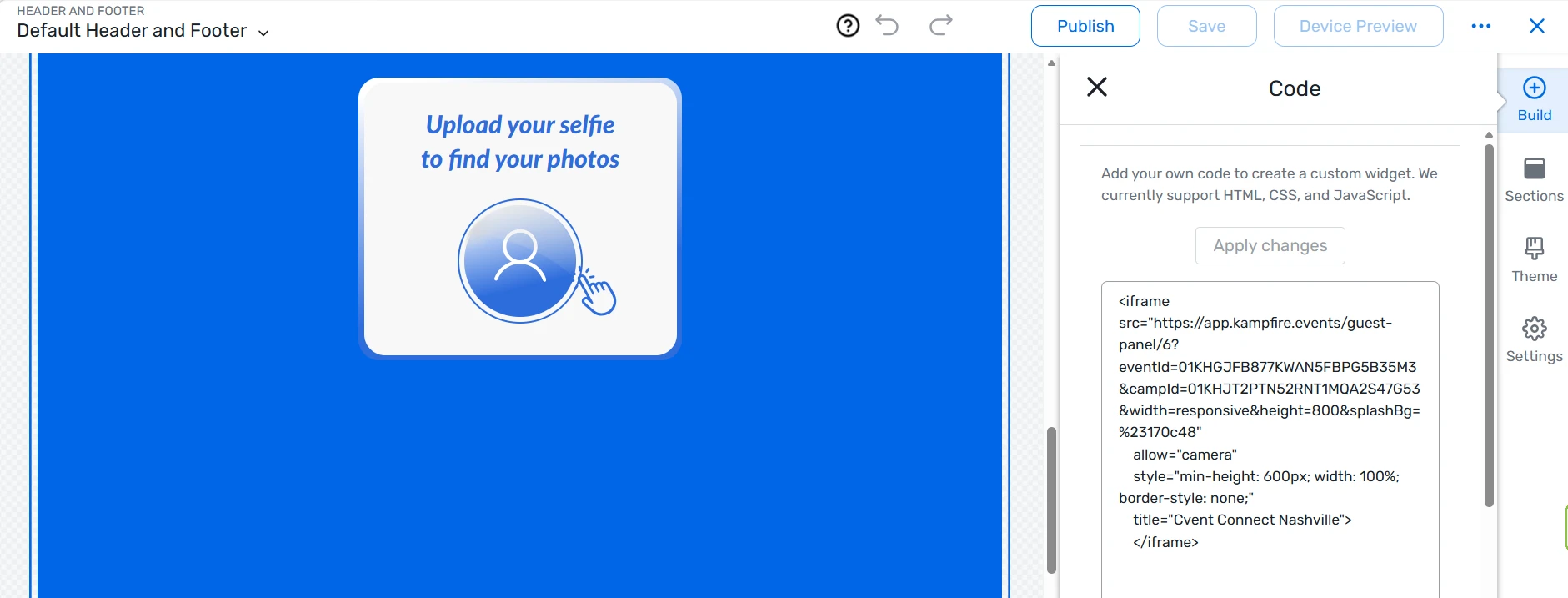
Copy your Kampfire iframe embed code and paste it into the code text box that appears on the right. When done, click Apply Changes.
Save your changes
Once everything is in place, click Save in the top-right corner of Site Designer. Your Kampfire embed is now live on your Cvent event website.

Our team handles your Cvent and CRM integration end to end - book a walkthrough and we'll set it up with you.
Want it embedded for your next event?
We'll get your Kampfire hub live inside Cvent - usually within hours.